
Troubleshooting Common Siemens PLC Issues: A Guide for Beginners
In the world of industrial automation, Programmable Logic Controllers (PLCs) are the backbone of control systems, automating machinery, processes, and even complex manufacturing lines. Siemens PLCs, in particular, are widely used due to their versatility, durability, and support for advanced functionalities. However, programming and troubleshooting Siemens PLCs can be challenging, especially for beginners. This guide will cover some common issues that arise during Siemens PLC programming and provide troubleshooting tips to help you get your system up and running smoothly.
1. Communication Errors: Siemens PLC Not Connecting to Software
One of the most common issues beginners face is an inability to establish a connection between the PLC and the programming software, such as Siemens TIA Portal or Step 7.

Symptoms:
- PLC is not detected by the software.
- Errors such as “Connection Failed” or “No Device Found.”
Causes:
- Incorrect IP configuration on the PLC or PC.
- Faulty Ethernet cables or network adapters.
- Firewall or antivirus blocking the connection.
Solutions:
- Check IP Configuration: Ensure that the IP address of the PLC and the PC are within the same subnet. You can configure these settings in the TIA Portal or Step 7 software.
- Inspect Physical Connections: Confirm that Ethernet cables are securely connected and not damaged.
- Disable Firewalls Temporarily: If you suspect the firewall or antivirus software is blocking communication, temporarily disable them to see if the connection is restored. Be cautious and ensure this is a safe option in your environment.
2. PLC Not Going into RUN Mode
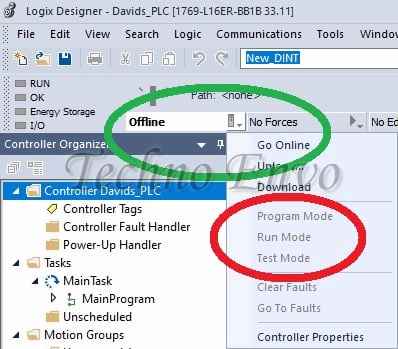
Another common issue is when the PLC refuses to transition into RUN mode, which is necessary for it to execute your program.

Symptoms:
- PLC remains in STOP mode.
- Red error lights on the PLC hardware.
Causes:
- Errors in the code.
- Hardware malfunctions.
- Configuration issues in the software.
Solutions:
- Debugging Code: Check for errors in the program, especially in logic and addressing. Siemens software often highlights areas with errors.
- Perform Diagnostics: Siemens PLCs often provide diagnostic tools in TIA Portal. Run a diagnostic check to identify if hardware issues are causing the problem.
- Force Mode Change: In TIA Portal, you can sometimes force the PLC into RUN mode after resolving any warnings or errors. Navigate to the online menu and select “Switch to RUN Mode” if the option is available.
3. Program Not Downloading Properly
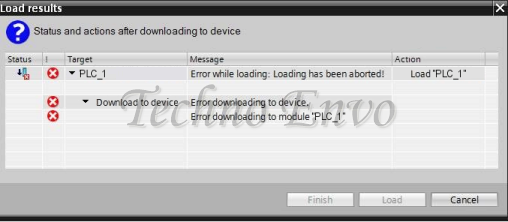
Occasionally, users may face issues when trying to download a program from the software to the PLC.
Symptoms:
- Program download fails midway.
- Error messages like “Connection Timeout” or “Download Interrupted.”
Causes:
- Network stability issues.
- PLC memory issues.
- Version compatibility issues.
Solutions:
- Check Connection Stability: Ensure your network connection is stable and not fluctuating, as this can interrupt downloads.
- Clear PLC Memory: If the PLC’s memory is full, try clearing unnecessary programs or data blocks to make space.
- Update Software and Firmware: Siemens frequently releases updates. Ensure that the TIA Portal and PLC firmware versions are compatible to prevent download errors.
4. Unexpected Outputs or Faulty Logic Execution
This issue is common, especially for beginners, when programming logic in Siemens PLCs.
Symptoms:
- PLC executes commands incorrectly.
- Outputs do not match the expected logic.
Causes:
- Logic errors in the code.
- Incorrectly assigned addresses.
- Overlapping memory allocation.
Solutions:
- Review Logic Thoroughly: Double-check that the program logic is correct. PLCs execute instructions sequentially, so ensure your logic aligns with the expected flow.
- Cross-Reference Addresses: Verify that the input and output addresses are correctly assigned, as an incorrect address can lead to unexpected behaviors.
- Simulate Before Deploying: Siemens’ TIA Portal offers simulation tools. Running a simulation before uploading the program helps identify potential issues without affecting real hardware.
5. PLC Not Responding to Inputs
In some cases, the PLC may not respond to inputs from sensors or switches, leading to delays or even process failure.

Symptoms:
- No reaction to inputs from connected devices.
- Input indicators on the PLC do not light up.
Causes:
- Loose or faulty wiring.
- Incorrect input addressing.
- Hardware faults in input modules.
Solutions:
- Inspect Physical Connections: Make sure all connections to sensors and switches are secure and undamaged.
- Verify Input Addresses: Ensure that the input addresses in the software match those of the actual PLC. Even a small discrepancy in addressing can cause the system to ignore inputs.
- Test the Input Module: If inputs still don’t register, it may indicate a hardware fault. Swap the input module with a known working module to test if the problem persists.
6. Error Codes and Alarms in Siemens PLC
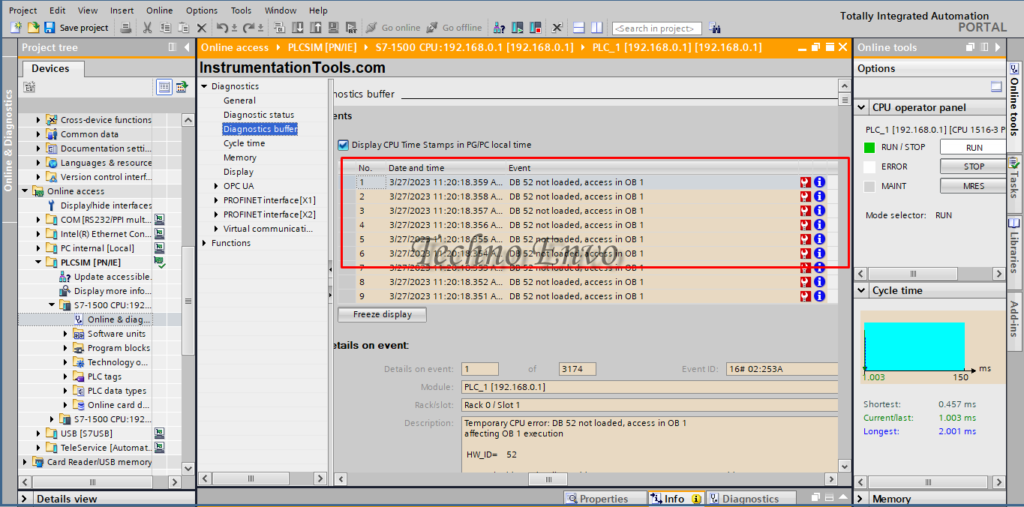
Siemens PLCs are equipped with built-in diagnostics, often displaying error codes or alarms that can be difficult to interpret for beginners.
Symptoms:
- Error codes on the PLC display or in TIA Portal.
- Alarms indicating system faults.
Causes:
- Various faults, ranging from program errors to hardware failures.
- Memory overflow or configuration issues.
Solutions:
- Consult the Error Codes: Siemens provides a list of common error codes in its documentation. Refer to these codes to identify potential causes and solutions.
- Use Siemens Diagnostic Tools: TIA Portal offers diagnostics that can help pinpoint specific issues. Go to the “Diagnostics” tab and review any active errors or warnings.
- Check Program Size: If memory issues are causing alarms, consider optimizing the program to reduce memory usage, or upgrade the PLC’s memory if possible.
Preventive Tips for Smooth Siemens PLC Programming
While troubleshooting is essential, implementing preventive practices can save time and avoid many of these common issues.
- Always Backup Your Programs: Before making any changes, create a backup of your existing program.
- Use Simulation Tools: Before deploying your program, run simulations to catch logic errors without risking hardware damage.
- Follow a Standard Programming Approach: Using structured programming and commenting can make it easier to locate issues later.
- Document Settings and Configurations: Maintain a record of your IP addresses, configurations, and PLC parameters for easy reference.
Final Thoughts
Working with Siemens PLCs may seem daunting at first, but with practice and a systematic approach to troubleshooting, you’ll quickly become proficient. As you gain experience, these common issues will become easier to diagnose and resolve. Remember that Siemens has extensive documentation, forums, and support options to help you along the way. Stick with it, and soon enough, Siemens PLC programming will feel less like a hurdle and more like a valuable skill.
FAQ: Troubleshooting Siemens PLC Issues
1. What should I do if my Siemens PLC keeps going into STOP mode?
If your PLC frequently goes into STOP mode, there may be underlying issues such as hardware faults, incorrect programming logic, or configuration problems. Check the diagnostic information in TIA Portal to see if any specific errors are reported. Also, review your program for logic errors or memory issues, and make sure the hardware connections are secure.
2. How can I reset my Siemens PLC to factory settings?
To reset a Siemens PLC to its factory settings, you can use the TIA Portal or follow the reset procedure on the PLC itself. In TIA Portal, go to “Online & Diagnostics” and look for the “Reset to Factory Settings” option. Remember, resetting will erase all existing programs and data, so make sure to back up any essential files before proceeding.
3. Why is my Siemens PLC not communicating with the TIA Portal software?
This issue could stem from incorrect IP settings, a loose Ethernet connection, or network interference. Double-check that both the PLC and PC are on the same subnet and that your firewall or antivirus is not blocking the connection. Verify that the Ethernet cable is securely connected and that the network settings are correctly configured in TIA Portal.
4. How can I find out what an error code on my Siemens PLC means?
Siemens PLCs display error codes that help diagnose issues. Consult the Siemens documentation or the TIA Portal diagnostics tool, which usually provides explanations for most error codes. Siemens also has online resources and community forums where you can look up specific error codes.
5. What is the best way to test my PLC program before running it on actual hardware?
Using the simulation tools in TIA Portal is the best way to test your program. This allows you to simulate logic, inputs, and outputs, helping you spot errors or unexpected behaviors before deploying the program to actual hardware. It’s a great habit for catching mistakes that could otherwise cause issues in a live environment.
6. My PLC doesn’t seem to respond to inputs from sensors—what could be the problem?
If the PLC is not responding to inputs, it might be due to wiring issues, incorrect addressing, or a faulty input module. First, check that all connections to sensors are secure and properly assigned in the TIA Portal software. If the problem persists, test the input module with another device to rule out hardware failure.
7. How often should I back up my Siemens PLC programs?
Regular backups are crucial, especially before making significant changes to your program. Aim to back up your program each time you make updates. This ensures that if any issues arise, you can quickly revert to a working version.
8. Can I use TIA Portal with older Siemens PLCs?
Yes, but compatibility depends on the PLC model. TIA Portal primarily supports newer Siemens PLC models, such as the S7-1200 and S7-1500 series. For older models, like the S7-200 or S7-300, you may need to use Step 7 Classic or other Siemens software designed for those specific PLCs.
9. What resources are available if I need more help troubleshooting?
Siemens offers a wealth of resources, including online manuals, official documentation, and user forums. TIA Portal itself has built-in help tools, and Siemens’ support website has a large library of FAQs, troubleshooting guides, and application examples. Additionally, Siemens has a strong user community where you can ask questions and get advice from experienced PLC programmers.
10. Are there any shortcuts or tools to make Siemens PLC programming easier?
Absolutely! TIA Portal includes features like “Automatic Address Assignment” and “Code Blocks” that can save time during programming. Structured Text (ST) can also be used in addition to Ladder Logic for more complex tasks. Also, getting comfortable with the TIA Portal’s search and replace functions, as well as its organizational tools, will improve your workflow and help prevent errors.
