
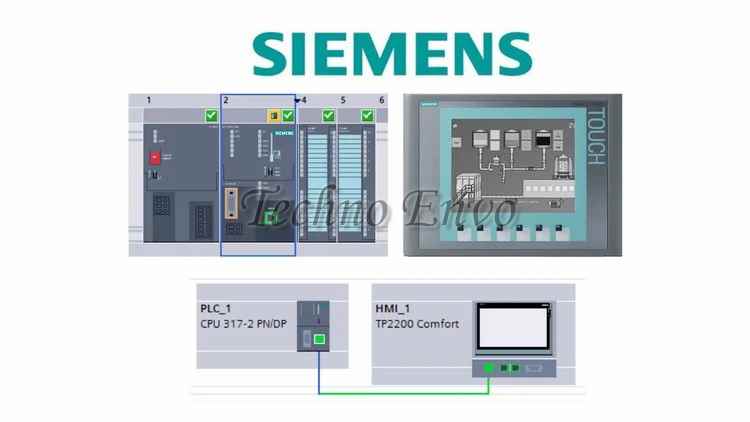
Connecting Siemens PLCs to SCADA Systems: A Practical Tutorial
In industrial automation, real-time monitoring and control are crucial for optimizing processes and ensuring operational efficiency. Integrating a Siemens PLC with a SCADA (Supervisory Control and Data Acquisition) system allows you to remotely monitor, control, and analyze your production processes with precision. This guide provides a practical, step-by-step tutorial for setting up a Siemens PLC with SCADA, enabling enhanced visibility and control over industrial processes.
What Are Siemens PLCs and SCADA Systems?
- Siemens PLCs (Programmable Logic Controllers) are powerful industrial computers that control machinery and processes by executing logic instructions. Popular Siemens PLC models include the S7-1200 and S7-1500 series, widely used for their robust processing capabilities and ease of integration.
- SCADA Systems provide a centralized interface to monitor, control, and analyze processes across multiple PLCs and devices. Through SCADA, operators can view real-time data, issue commands, and collect data for performance analysis and optimization.
Connecting Siemens PLCs with a SCADA system creates a unified platform for streamlined operations, faster response times, and better decision-making in industrial environments.
Step 1: Setting Up the Siemens PLC for SCADA Communication
The first step is to configure the Siemens PLC to enable communication with the SCADA system. Siemens PLCs typically support several communication protocols, with PROFINET and Modbus TCP/IP being among the most common for SCADA integration.
A. Configuring Network Settings on the PLC
- Open TIA Portal: Start by launching Siemens TIA Portal software and creating a new project.
- Assign IP Address: Go to “Device Configuration,” select the PLC, and assign a unique IP address within your network’s range. Ensure the IP address doesn’t conflict with other devices.
- Choose Communication Protocol: In most cases, PROFINET or Modbus TCP/IP is suitable for SCADA. Set up the selected protocol in the PLC’s network configuration.
B. Define Data Blocks for SCADA Access
Data blocks store the values and parameters the SCADA system needs to access.
- Open the Program Blocks Section: Within TIA Portal, navigate to the Program Blocks section.
- Create Data Blocks: Set up data blocks to define which variables will be accessible by the SCADA system. Ensure that you enable read/write access if the SCADA will both monitor and control these values.
Step 2: Configuring the SCADA System for Siemens PLC Integration
With the PLC configured, it’s time to set up the SCADA software for communication. Popular SCADA software includes WinCC, Wonderware, and Ignition, each with slightly different setup steps. Here, we’ll focus on general steps applicable to most SCADA platforms.
A. Connect SCADA to the Network
Ensure that the SCADA computer is on the same network as the PLC, with a compatible IP address. You may need to configure the firewall on the SCADA computer to allow PLC communications.
B. Set Up Communication Protocol in SCADA
- Add New Device in SCADA: In the SCADA interface, create a new device or connection for the Siemens PLC.
- Select Communication Protocol: Choose the protocol that matches the PLC configuration (e.g., PROFINET or Modbus TCP/IP).
- Enter PLC IP Address: Input the IP address of the Siemens PLC configured in Step 1. This connects the SCADA system to the correct device on the network.
C. Configure Tags for Real-Time Data Monitoring
Tags are points in the SCADA system that represent data variables in the PLC.
- Define Tags in SCADA: Map each PLC variable (or data block) to a corresponding SCADA tag. These tags represent the specific data you want to monitor or control.
- Configure Tag Attributes: Set properties like data type (e.g., integer, float) and access level (read-only or read/write) to match the PLC configuration.
Step 3: Testing and Verifying the Connection
Before deploying the system, it’s essential to verify the connection and ensure data flows seamlessly between the PLC and SCADA system.
A. Ping Test
To confirm that the SCADA system can communicate with the PLC, run a network ping test:
- Open the Command Prompt on the SCADA computer.
- Enter
ping [PLC_IP_Address]to check for a network response.
B. Monitor Live Data on SCADA
- View Real-Time Values: In the SCADA interface, view live data values for the tags mapped to the PLC. Verify that the values update in real time.
- Control Test (Optional): If your SCADA setup allows control commands, test sending a command to the PLC (e.g., start or stop a motor). Ensure that the PLC responds correctly.
C. Verify Alarms and Notifications
Most SCADA systems have alarm and notification settings. Configure alarms to monitor abnormal conditions, and check if they activate when expected (e.g., temperature exceeding limits).
Step 4: Securing the PLC-SCADA Connection
Security is critical for any industrial control system, as unauthorized access can lead to significant disruptions. Siemens PLCs and SCADA systems offer multiple security options:
- Enable Authentication: Use password protection on both PLCs and SCADA systems to restrict access.
- Use Encrypted Protocols: For added security, consider using encrypted communication protocols where available.
- Limit Network Access: Only connect necessary devices to the network and ensure they have static IPs to reduce potential points of entry.
Real-World Case Study: Implementing SCADA with Siemens PLCs for Efficient Process Monitoring
A water treatment plant integrated Siemens S7-1500 PLCs with a WinCC SCADA system for improved monitoring and control.
Project Goals:
The plant wanted real-time monitoring of water quality, flow rate, and equipment status to respond quickly to any issues and ensure compliance with environmental standards.
Implementation:
- Siemens PLCs were installed at key process points to monitor water flow, pH levels, and chemical dosing.
- Each PLC communicated with WinCC SCADA over PROFINET, with tags configured for each critical measurement.
- Alarms were set up in the SCADA system to notify operators if parameters exceeded safe limits.
Results:
- Improved Response Time: Operators could monitor water quality in real time and respond within minutes to any deviations.
- Reduced Compliance Violations: The system helped the plant stay within environmental standards by automatically adjusting dosing when pH levels fluctuated.
- Increased Efficiency: The plant reduced operational costs by minimizing manual checks and preventing water waste.
FAQ: Connecting Siemens PLCs to SCADA Systems
1. Do I need TIA Portal to connect Siemens PLCs to SCADA?
Yes, TIA Portal is essential for configuring Siemens PLCs, setting up data blocks, and managing communication protocols. Once the PLC is configured, SCADA software can connect and read/write data as needed.
2. What communication protocols do Siemens PLCs support for SCADA integration?
Siemens PLCs commonly support PROFINET and Modbus TCP/IP for SCADA integration. These protocols allow fast and reliable data exchange between PLCs and SCADA systems, suitable for real-time monitoring and control.
3. How can I ensure secure communication between Siemens PLCs and SCADA?
Security measures include using strong passwords, restricting network access, employing encrypted protocols, and configuring firewalls on the SCADA system. Regularly updating software and firmware also helps protect against vulnerabilities.
4. What kind of data can I monitor and control through SCADA from a Siemens PLC?
You can monitor and control a wide range of data points, such as temperature, pressure, flow rate, equipment status, and alarm conditions. Data visibility depends on how you configure data blocks and tags within the PLC and SCADA.
5. How do I troubleshoot connectivity issues between my Siemens PLC and SCADA system?
First, check that the PLC and SCADA system are on the same network and confirm that IP addresses are correctly configured. Run a ping test, ensure protocols match, and verify tag mappings within SCADA. TIA Portal’s diagnostic tools can also help pinpoint issues.
6. Can I use any SCADA software with Siemens PLCs?
Most SCADA software, such as WinCC, Ignition, and Wonderware, can integrate with Siemens PLCs, especially when using standard communication protocols like PROFINET or Modbus TCP/IP.
7. What are the advantages of using SCADA with Siemens PLCs?
Integrating SCADA with Siemens PLCs enhances real-time monitoring, centralized control, data logging, and alarm management. This integration reduces response times, improves operational efficiency, and provides valuable insights for process optimization.
Conclusion
Setting up a Siemens PLC with a SCADA system opens up a world of possibilities for industrial automation. Through seamless real-time data exchange, centralized control, and enhanced monitoring, your production process can become more efficient, responsive, and secure. By following this practical tutorial, you can establish a robust PLC-SCADA connection and gain valuable insights into your operations, helping drive smarter decision-making and better performance.
